JSON to Excel Converter
JSON to Excel Converter
Convert JSON into Excel spreadsheets instantly. This tool transforms JSON arrays into Excel-friendly tables so you can analyze data, build reports, and share results with teams that prefer spreadsheets. It runs entirely in your browser, so your data stays private and is never uploaded.
Why convert JSON to Excel
JSON is perfect for APIs, but Excel is often the preferred format for analysis and reporting. Converting JSON to Excel lets you sort, filter, pivot, and chart your data without writing code. It also makes it easier to share structured data with stakeholders who are comfortable with spreadsheets.
How the conversion works
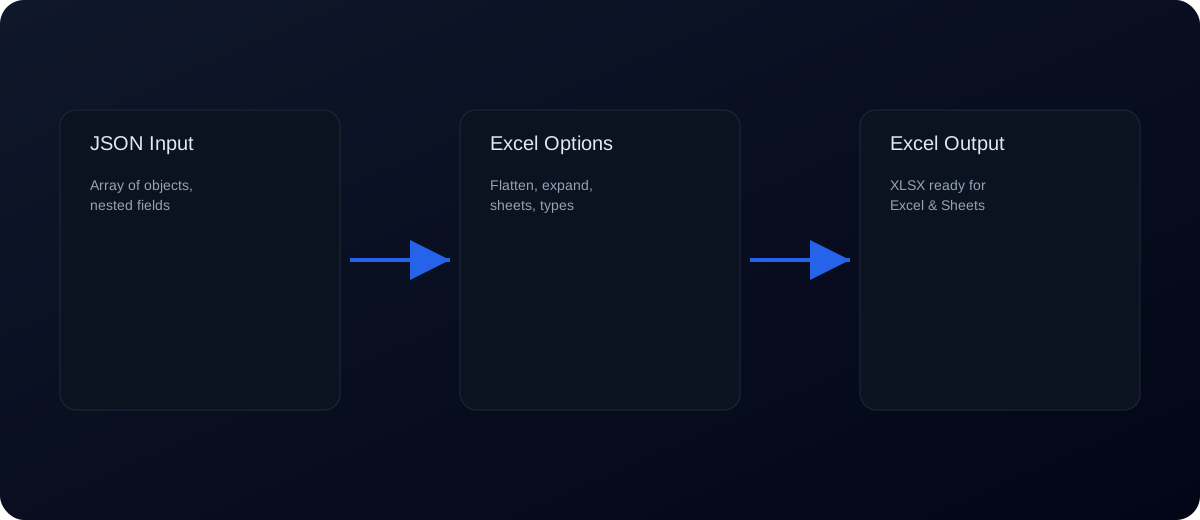
The converter expects a JSON array of objects. Each object becomes a row, and each key becomes a column. Nested objects are flattened into dot-delimited columns so the sheet stays tabular. The output is a standard .xlsx file that opens in Excel, Google Sheets, and most spreadsheet apps.
How to use the JSON to Excel tool
- Paste JSON into the left editor or upload a JSON file.
- Click Convert to generate the Excel sheet.
- Download the
.xlsxfile and open it in Excel.
JSON to Excel converter online: quick tutorial
- Paste a JSON array of objects and choose flattening / array options.
- Set the sheet name, then click Convert.
- Download the
.xlsxfile or copy CSV/TSV.
Example: JSON to Excel
Input JSON:
[
  {"id": 1, "sales": 100, "region": "East"},
  {"id": 2, "sales": 150, "region": "West"}
]
Output spreadsheet:
id | sales | region
1  | 100   | East
2  | 150   | West
Common use cases
- Export API responses for reporting and dashboards.
- Create Excel reports from JSON logs or analytics data.
- Share structured data with non-technical teams.
- Prepare data for pivot tables and charts.
Common issues and fixes
- Invalid JSON: Use JSON Validator before converting.
- Not an array: Excel needs rows. Wrap objects in an array if your JSON is a single object.
- Nested objects: Deep nesting creates long column names. Consider using JSON Flatten first.
- Large files: Very large JSON arrays may be slow in the browser. Split files if needed.
- Missing headers: Column names are derived from keys. Ensure keys are consistent across objects.
Excel tips
- Import the file as UTF-8 to preserve special characters.
- Set columns like IDs to text to preserve leading zeros.
- Use filters and pivot tables for quick insights.
- Save a clean version before editing to keep the raw data intact.
Best practices
- Normalize key names to keep columns consistent.
- Keep arrays flat for predictable row structures.
- Validate output in Excel before sharing.
- Remove sensitive fields before exporting data.
- Store the source JSON alongside the spreadsheet for traceability.
Excel output options explained
- Flatten nested: Converts nested objects into dot/bracket columns.
- Array handling: Stringify arrays or expand them to rows using an array path.
- Type inference: Converts numbers/booleans; detects dates; preserves leading zeros.
- Null/empty: Choose empty cells, literal
null, or a custom placeholder. - Sheet mode: Single sheet or one sheet per top‑level key.
- Columns: Control order and rename headers using mappings.
- Preview rows: Limit preview for performance on large data.
- Auto widths / freeze header: Improve readability in Excel.
Handling nested data
Excel works best with flat rows, but JSON often includes nested objects and arrays. This converter flattens nested objects into dot-delimited column names (for example, user.id and user.name). If you need a different structure, flatten the JSON with JSON Flatten first or adjust the output in Excel by splitting columns.
Arrays and repeating values
Arrays can produce ambiguous columns in spreadsheets. For arrays of objects, consider expanding them into separate rows before conversion. For arrays of primitives, they may be joined into a single cell. If your analysis depends on those array values, restructure the data into one row per item.
Data quality checks
Before sharing the Excel file, scan for empty columns, inconsistent values, or unexpected data types. If a column is mostly empty, it may indicate inconsistent keys across objects. Standardize your JSON keys to avoid missing columns and to keep the sheet clean.
Excel import tips
When opening the file, ensure Excel recognizes the correct data types. IDs, postal codes, or phone numbers should be treated as text to preserve leading zeros. For dates, confirm the date format is correct for your locale.
Performance notes
Large JSON arrays can generate big spreadsheets that may be slow to open. If you experience performance issues, split your JSON into smaller chunks and create multiple files. This keeps Excel responsive and easier to navigate.
Workflow checklist
- Validate JSON input.
- Flatten nested fields if necessary.
- Convert to Excel and review the first rows.
- Save a clean copy before editing.
- Share the spreadsheet with context about column meanings.
Security and privacy
The conversion runs locally in your browser, so your JSON is not uploaded. Still, be mindful of where you save and share the resulting spreadsheet. Remove personal or confidential fields before exporting if the file will be shared externally.
When to use CSV instead
If you only need a simple table without formulas or formatting, CSV may be enough and can be smaller. Use JSON to CSV for lightweight exports and reserve Excel when you need multiple sheets, formatting, or rich analysis.
Collaboration tips
For shared reporting, document the meaning of each column and keep a small data dictionary. This reduces confusion, improves consistency, and helps new teammates understand the data quickly.
Automation workflows
If you export JSON to Excel regularly, automate the process in your pipeline and use this tool for quick verification. Consistent exports help reporting and analytics teams build stable dashboards.
Versioning and traceability
Downloads include the tool name and a timestamp in the filename by default, which makes it easier to trace which JSON input produced a report and reduces confusion when multiple exports are shared across teams.
QA checklist for exports
Before sending a spreadsheet, verify row counts, ensure no columns are empty due to mismatched keys, and confirm that numeric fields are not accidentally stored as text. These quick checks prevent errors downstream in analysis.
Large files and memory
Excel has row limits and performance constraints. If your dataset is huge, split it into multiple files or consider a database export instead. This tool is ideal for small to medium datasets and quick reporting.
FAQs
Does it work in Excel? Yes. The output is a standard .xlsx file.
Is it secure? Yes. All processing is client-side in your browser.
Can I open it in Google Sheets? Yes. Google Sheets can import .xlsx.
Does it support multiple sheets? This tool exports a single sheet per conversion.
Can I create multiple sheets? Yes. Use “Sheet per top‑level key” to generate multiple sheets.
Can I convert back to JSON? Use CSV to JSON after exporting to CSV or re-export from Excel.
How do I handle nested arrays? Flatten the JSON first or restructure it into rows.
Keyword‑targeted phrases
- json to excel
- json to xlsx
- convert json to excel
- json to excel converter
- json to excel online
- json array to excel
Related tools: JSON to CSV, CSV to JSON, JSON Flatten, JSON Validator, JSON to SQL