XML to JSON Converter
XML to JSON Converter
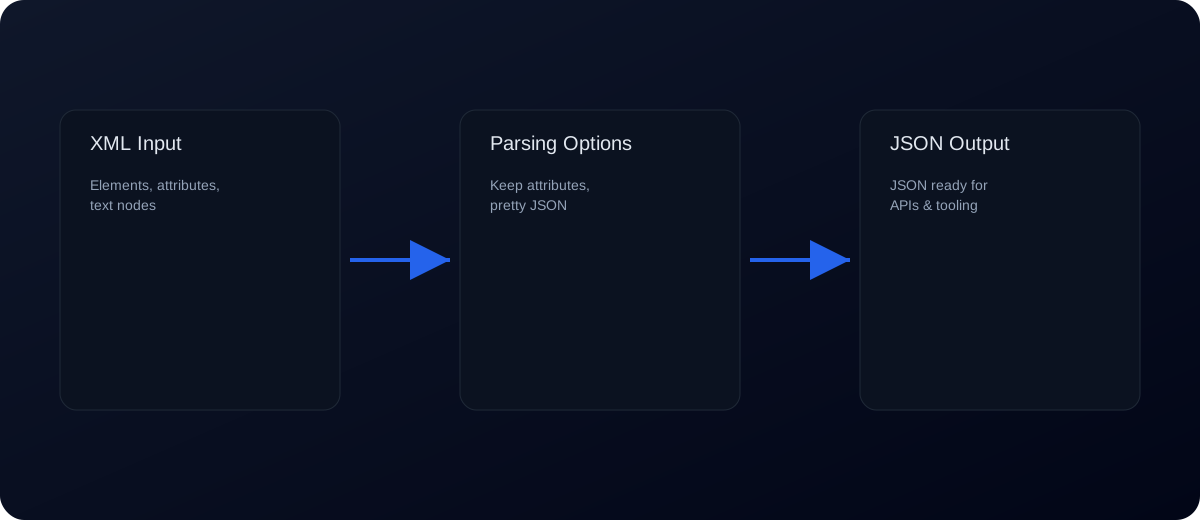
XML is still the backbone of many enterprise systems, configuration formats, and legacy APIs, while JSON is the de facto standard for modern web and mobile applications. This XML to JSON converter helps you bridge those worlds instantly, in the browser, without uploading your data. Paste XML on the left, convert, and get clean JSON on the right so you can validate, debug, or feed it into a modern workflow. It is designed for developers, QA teams, data engineers, and analysts who need a fast way to inspect XML payloads, normalize structure, or migrate data into JSON-friendly tooling.
Why convert XML to JSON
XML is flexible and expressive, but it is verbose and often difficult to parse in client-side JavaScript. JSON is lighter, easier to work with in most languages, and supported by nearly every API tooling stack. Converting XML to JSON helps you map legacy data into modern systems, run transformations in JavaScript, or store it in JSON-based databases. It also helps you compare responses across systems, visualize nested data, and share samples with teammates who are more comfortable with JSON.
How XML maps to JSON
XML uses elements, attributes, and text nodes. JSON uses objects, arrays, and values. The converter maps elements to objects and repeated elements to arrays. Attributes are typically represented as properties (for example, prefixed keys such as @id), while text content becomes a value (often under a #text key). The exact mapping is chosen to preserve structure and readability. When you see keys like @ or #, that is the converter’s way of keeping attribute and text information without losing meaning.
Step-by-step workflow
- Paste your XML into the left editor. If your XML includes a declaration such as
<?xml version="1.0"?>, it is fine to keep it. - Choose attribute, text, and formatting options in the panel above.
- Click Convert to generate JSON. The output appears on the right.
- Review the JSON structure and adjust your XML if you need a different shape (for example, wrap repeating elements in a parent node).
- Validate the result with JSON Validator or format it with JSON Formatter.
Options you can control
- Keep attributes: Store XML attributes in a dedicated
@attributesobject. - Text key: Define the key used for mixed text content (default
#text). - CDATA key: Store CDATA content under a separate key.
- Trim text nodes: Remove extra whitespace from text nodes.
- Pretty JSON: Format output for readability or minify for compact output.
Example: XML to JSON conversion
Here is a simple example of XML that represents a list of users:
<users>
  <user id="7">
    <name>Ava Chen</name>
    <role>editor</role>
  </user>
  <user id="12">
    <name>Ravi Patel</name>
    <role>admin</role>
  </user>
</users>
After conversion, you will get JSON that retains the structure and the attribute values:
{
  "users": {
    "user": [
      {
        "@id": "7",
        "name": "Ava Chen",
        "role": "editor"
      },
      {
        "@id": "12",
        "name": "Ravi Patel",
        "role": "admin"
      }
    ]
  }
}
This JSON is ready to query, sort, transform, or store. If you need a flatter shape, you can adjust the XML structure or use a post-processing step with JSON Transform.
Common errors and how to fix them
- Invalid XML: XML must be well-formed. Make sure every opening tag has a closing tag, attributes are quoted, and there is a single root element.
- Unexpected arrays: If the converter creates an array where you expected a single object, it usually means multiple sibling elements share the same name.
- Lost attributes: If attributes appear missing, check for namespace prefixes or invalid characters in attribute names. Normalize the XML before converting.
- Namespaces are confusing: XML namespaces can introduce long prefixes. Consider removing namespaces when they are not needed, or use a consistent prefix strategy.
- CDATA blocks look odd: CDATA is treated as text content. If you see extra wrappers, it is simply preserved data; you can read it from the
#textfield.
Best practices for reliable conversion
- Keep a single, clear root node to avoid ambiguous structures.
- Group repeated elements under a parent tag to ensure predictable arrays.
- Avoid mixing attributes and text content when possible; use child elements for clarity.
- Validate the XML before conversion, especially when it comes from third-party systems.
- Run the output through JSON Formatter to make it easier to read and review.
Migration checklist
When you are converting XML for a production integration, treat the conversion as a data modeling exercise. Start by identifying the XML elements you actually need, then map them into a clean JSON shape that your consumers expect. If a field can repeat, plan for arrays. If a field is optional, be ready for null or missing keys. Finally, validate the JSON against a schema or contract so that downstream services do not break when the data changes.
Round-trip considerations
XML and JSON are not perfect mirror images. XML supports attributes, mixed content, namespaces, and order-sensitive elements, while JSON focuses on object keys and arrays. When you convert XML to JSON and then back to XML, you might not get the exact original structure. That is normal. If round-trip fidelity matters, decide on a clear mapping strategy and keep it consistent across the pipeline so you can predict how attributes and text nodes are represented.
Performance and large files
For large XML files, conversion can be memory-intensive in the browser. If the editor feels sluggish, consider splitting the XML into smaller chunks or removing large blobs that do not need to be converted. Another option is to convert the data on the server using streaming parsers, then use this tool to validate or inspect the output. The goal is to keep your workflow responsive while still ensuring correctness.
XML to JSON converter online: quick tutorial
- Paste XML on the left and choose whether to keep attributes.
- Click Convert XML → JSON to generate output.
- Copy or download the JSON for use in APIs or scripts.
Keyword‑targeted phrases
- xml to json
- convert xml to json
- xml to json converter
- xml to json converter online
- xml to json online
- xml attributes to json
- xml to json array
- xml to json string
FAQs
Does the converter upload my XML? No. The conversion happens locally in your browser, so your data never leaves your device.
Can I convert large XML files? Yes, but extremely large files may be limited by your browser’s memory. If the editor feels slow, try splitting the XML into smaller chunks.
Is the JSON output standardized? There is no single global standard for XML to JSON mapping. This tool uses a consistent mapping that preserves elements, attributes, and text.
Can I control the text and CDATA keys? Yes. Set custom keys in the options panel.
Can I pretty print or minify JSON? Yes. Toggle Pretty JSON and adjust the indent size.
What about SOAP responses? SOAP is just XML. You can convert it to JSON and then inspect the inner body content for data extraction.
Can I round-trip JSON back to XML? Yes. Use JSON to XML to convert back and compare results.
How do I handle XML with namespaces? Namespace prefixes are treated as part of the key. You can strip them or normalize keys after conversion if needed.
Related tools: JSON to XML, JSON Validator, JSON Formatter, JSON Transform, XSD to JSON