JSON to XML Converter
JSON to XML Converter
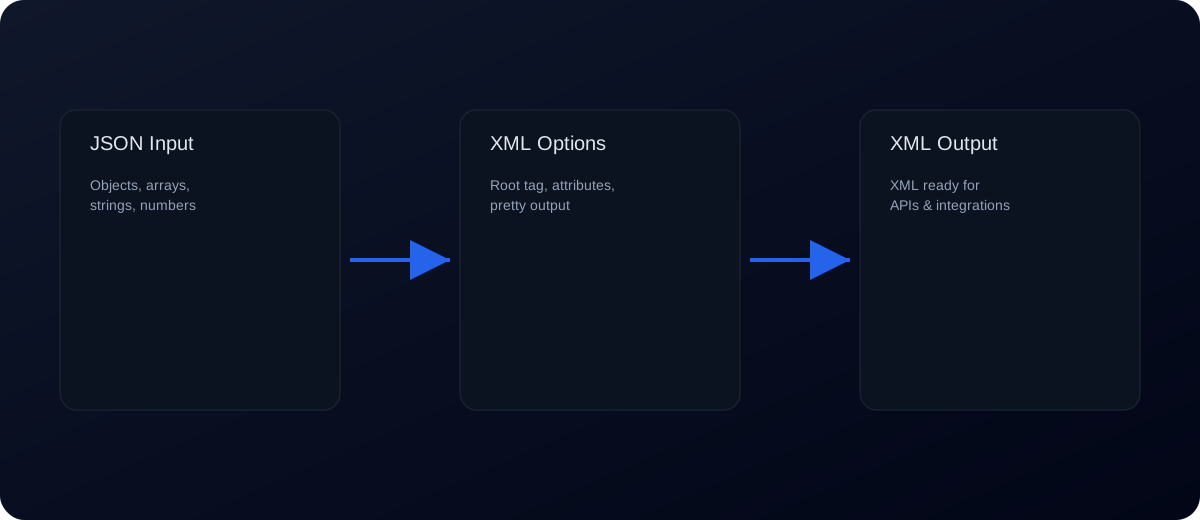
The JSON to XML Converter transforms JSON into XML so you can integrate with legacy systems, SOAP services, and enterprise middleware. XML remains common in older APIs and regulated environments, while JSON is the standard in modern web services. This tool bridges the gap by converting JSON into XML quickly and safely in your browser.
Converting JSON to XML is useful when a system only accepts XML but your data comes from JSON APIs. It also helps when migrating data, testing integrations, or debugging payloads across mixed environments. The converter keeps the structure intact by mapping JSON objects to XML elements and arrays to repeated elements.
How JSON maps to XML
- Objects: Become nested XML elements.
- Arrays: Become repeated child elements.
- Strings: Become text nodes.
- Numbers/booleans: Become text values (XML is text-based).
How to use the converter
- Paste JSON into the left editor.
- Set the root tag and optional settings like array wrapping or attributes.
- Choose pretty XML if you want formatted output.
- Click Convert JSON → XML.
- Copy or download the XML output.
Options you can control
- Root tag: Sets the top-level XML element name.
- Wrap arrays: Wraps arrays in a parent element and uses an item tag for entries.
- Array item name: Tag name used for each array item when wrapping.
- Use @attributes: Map a JSON
@attributesobject to XML attributes. - Text key: Use
#textfor text nodes when attributes are enabled. - XML declaration: Adds
<?xml version="1.0" encoding="UTF-8"?>. - Sanitize names: Cleans invalid element and attribute names.
Attributes with @attributes
To create XML attributes, include a @attributes object inside a JSON object. You can also use #text for text nodes when needed.
{
  "person": {
    "@attributes": { "id": "1", "role": "admin" },
    "name": "Avi"
  }
}
Example: JSON to XML
Input JSON:
{
  "order": {
    "id": 101,
    "customer": "Avi",
    "items": [
      { "sku": "PEN", "qty": 2 },
      { "sku": "BOOK", "qty": 1 }
    ]
  }
}
Output XML (simplified):
<order>
  <id>101</id>
  <customer>Avi</customer>
  <items>
    <item>
      <sku>PEN</sku>
      <qty>2</qty>
    </item>
    <item>
      <sku>BOOK</sku>
      <qty>1</qty>
    </item>
  </items>
</order>
Common errors and fixes
- Invalid JSON: Fix syntax with JSON Validator before converting.
- Unexpected XML structure: Arrays become repeated elements. If you want different tag names, adjust after conversion.
- Null values: Nulls may be omitted or converted to empty elements. Provide non-null values when required.
- Special characters: XML requires escaping for
<,>, and&. The converter handles this automatically. - Root element naming: Use the Root tag option or wrap JSON in a root object with a clear key.
Best practices for JSON → XML
- Use a root object so the XML output has a clear top-level element.
- Normalize arrays so items share the same shape.
- Format the output for readability if you plan to review it.
- Validate JSON before converting to reduce errors.
- Use JSON to XSD to generate schemas for XML validation.
Attributes and element naming
XML supports attributes and element names that are not always obvious from JSON. If your target XML requires attributes, a common pattern is to convert JSON keys into elements first, then manually adjust attributes in the output. For example, an id value might need to become id="123" instead of <id>123</id>. This tool prioritizes predictable, readable output, so you may need to perform a quick post-processing pass when attributes are required.
Namespaces and schema requirements
Some XML integrations require namespaces such as xmlns declarations or schema locations. JSON does not have a native concept of namespaces, so the converter cannot infer them automatically. If your integration requires a specific namespace prefix, add it after conversion or wrap your JSON in a structure that clearly indicates the required root element name. When schema validation is mandatory, generate an XSD with JSON to XSD and validate the output with an XML validator.
Data types and typing
XML is text-based, so numbers, booleans, and dates become strings. If your downstream system requires explicit types (such as xs:int or xs:boolean), you will need to enforce those types during schema validation or by adding type attributes. Keep this in mind when converting data that will be validated strictly against an XSD.
Large files and performance
For very large JSON documents, client-side conversion can be memory-intensive. If you experience slowdowns, consider converting smaller segments or using a server-side converter with streaming support. This tool is ideal for daily workflows, testing, and quick conversions, but extremely large datasets may require a more specialized pipeline.
Round-trip considerations
Converting JSON to XML and then back to JSON does not always result in the exact original structure. XML supports attributes, mixed content, and order-sensitive elements, while JSON does not. If round-trip fidelity is important, define a consistent mapping strategy and stick with it across systems.
JSON vs XML considerations
JSON is simpler and lighter, while XML is verbose but schema-friendly. XML supports attributes and namespaces, which JSON does not. If your integration requires XSD validation, XML is often mandatory. Use JSON for modern REST APIs and XML for legacy or schema-driven workflows.
Use cases
Legacy integrations: Convert JSON payloads for SOAP or XML-only services.
Data migration: Prepare JSON exports for XML-based systems.
Testing: Convert sample JSON into XML for QA scenarios.
Middleware: Bridge JSON APIs with XML-based enterprise tools.
Workflow checklist
- Validate JSON input.
- Convert to XML and review output.
- Format XML if needed.
- Validate with XSD for strict integrations.
- Store or transmit XML safely.
Encoding and special characters
XML requires certain characters to be escaped, including <, >, and &. This converter escapes those characters automatically. If you are embedding XML inside another XML document or inside HTML, verify encoding to avoid invalid markup.
If you need compact XML for transport, you can remove extra whitespace after conversion. For debugging or reviews, keep the pretty formatted output so nested elements are easier to read.
When sharing XML, verify that the receiving system expects UTF-8 and that line endings are consistent.
Keep a small sample file for tests so you can quickly verify changes in mapping.
Small regression samples help maintain consistent output.
JSON to XML converter online: quick tutorial
- Paste JSON on the left and set a root tag.
- Choose pretty XML for readability.
- Click Convert JSON → XML and copy or download the output.
Keyword‑targeted phrases
- json to xml
- convert json to xml
- json to xml converter
- json to xml converter online
- json to xml online
- json array to xml
- json to xml string
- json to xml formatter
FAQs
Does this preserve arrays?
Yes. Arrays become repeated XML elements or can be wrapped with item tags.
Can I add XML attributes?
Yes. Enable @attributes and add an @attributes object in JSON.
Is my data uploaded?
No. All conversion happens locally in your browser.
Can I convert XML back to JSON?
Yes. Use XML to JSON.
Will this validate XML?
No. Use an XML validator or XSD with the output.
Does the converter handle special characters?
Yes. It escapes XML-sensitive characters automatically.
Can I include the XML declaration?
Yes. Enable the XML declaration option to prepend the header.
Can I pretty print or minify XML?
Yes. Toggle Pretty XML to format or minify the output.
How do I control root element names?
Use the Root tag option or wrap JSON in a root object.
Can I use this with SOAP?
You can generate XML, but SOAP envelopes must be added separately.
Related tools: XML to JSON, JSON to XSD, XSD to JSON, JSON Validator, JSON Formatter